
如何在iPhone手機上激活/安裝eSIM?How to activate/setup eSIM on iPhone?
Jan 29,2024 | Sean的esim商店
What you need?
你需要準備什麽?
- An iPhone XS, iPhone XS Max, iPhone XR, or later
- 一臺蘋果手機,XS以上的型號即可
- A stable WiFi connection*
- 穩定的無線網絡連接
- A QR code from an eSIM provider
- eSIM供應商提供的二維碼
* iPhone 14 models that are eSIM only can activate without a Wi-Fi network.
僅支援eSIM的iPhone 14機型可在無Wi-Fi網絡的情況下激活。
How do I know if my iPhone is eSIM compatible?
我的iPhone是否兼容eSIM,我該如何得知?
See “eSIM compatible devices”.
點擊前往“eSIM支持設備列表”網頁查看
Should I install eSIM before travel?
我應該在旅行前安裝eSIM嗎?
Special Tip: Don't set up your eSIM too early.
特別提示:不要太早設定你的eSIM。
Each eSIM data plan has a limited number of days of service, so don't start installing and activating too early, or the billing will start counting down before the trip begins.
每個eSIM數據套餐的服務期限都有限,所以不要太早開始安裝及激活,否則計費會在旅程開始前就開始倒數了。
Best practice is to set up your data plan on the day of your travel.
最佳做法是在旅行當天設定你的數據套餐。
Of course, there are 2 specific installation time points, one option is before you travel and leave, when you are still at home, and the second option is once you arrive at the destination airport, but it should be noted that you need a stable Wi- Fi connection is required to complete the eSIM installation process.
當然,有兩個具體的安裝時間點,一個選擇是在你出行離家前,也就是你還在家裡的時候;另一個選擇是在你抵達目的地機場時,但需要注意的是,完成eSIM安裝流程需要有穩定的Wi-Fi連接。
You may prefer to set up the eSIM earlier than this so you're not in such a rush. But remember, once you set up your eSIM, you can't pause your plan, so the expiration date will start counting down.
你可能更願意比上述建議的時間更早設定eSIM,這樣就不用那麼匆忙。但要記住,一旦你設定了eSIM,就無法暫停你的套餐,所以有效期就會開始倒數了。
In addition, pay attention to the precise calculation method of service days, The activation date is the first day and expires at 24:00 on the last day. The date and time above refer to Hong Kong Time (UTC+8).
此外,要留意服務天數的精確計算方式,激活日即為第一天,並在最後一天的24時到期。上述的日期和時間均以香港時間(協調世界時+8)為準。
For example, if you have a 1-day serice days eSIM card, and you are currently in London, UK, and it is 13:00 London time, if you choose to activate immediately, the actual calculation start time is 21:00 Hong Kong time, and the actual validity period is only 3 hours.
例如,如果你有一張服務期限為1天的eSIM卡,而你此刻在英國倫敦,倫敦時間是13:00,如果你選擇立即激活,實際的計算起始時間是香港時間21:00,那麼實際有效期就只有3個小時。
How do I install eSIM on my phone?
我如何在我的手機上安裝eSIM?
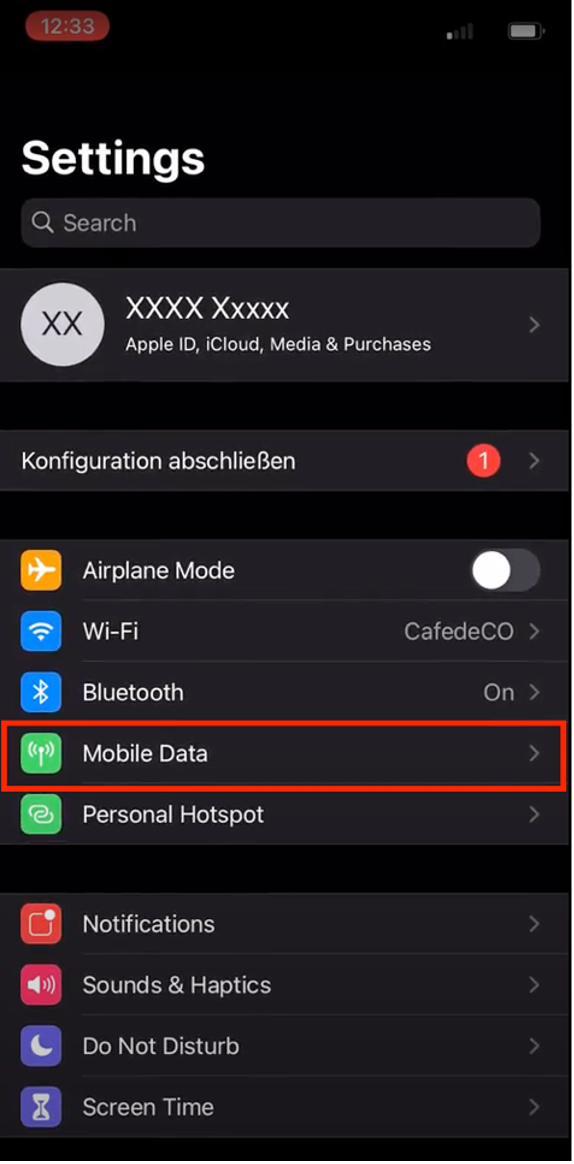
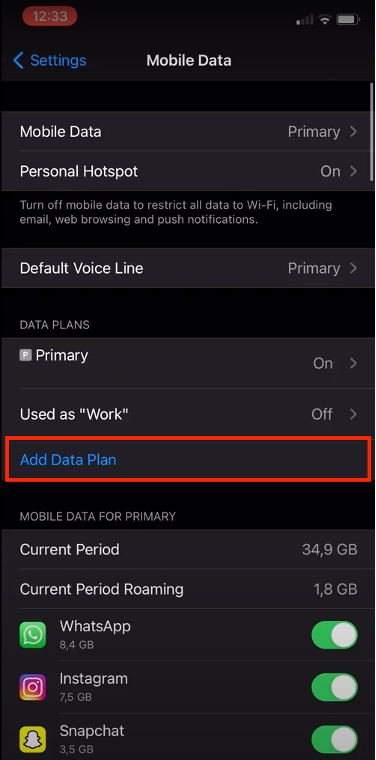
1. Add eSIM mobile data plan
1. 新增eSIM移動數據套餐。
Go to Settings > Mobile Data > Add Data Plan
前往「設定」>「行動數據」>「新增數據套餐」
2. Install eSIM via QR code
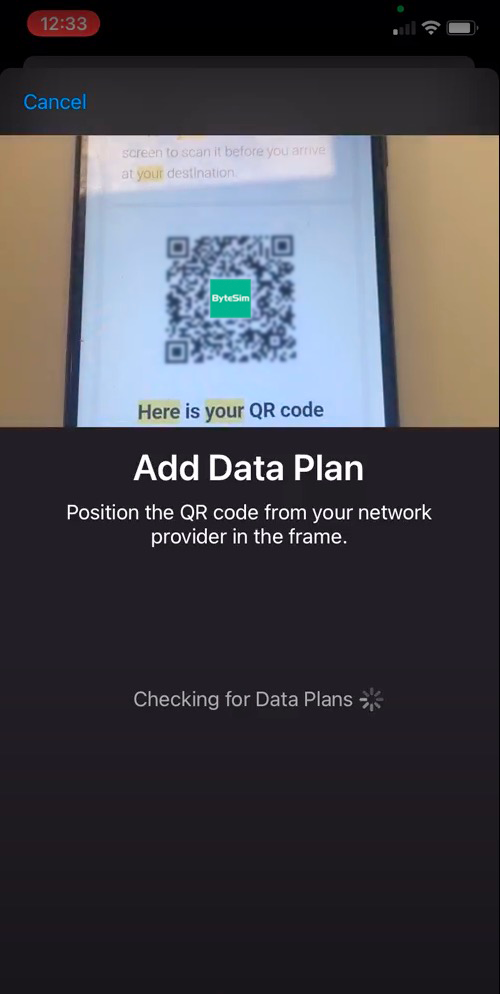
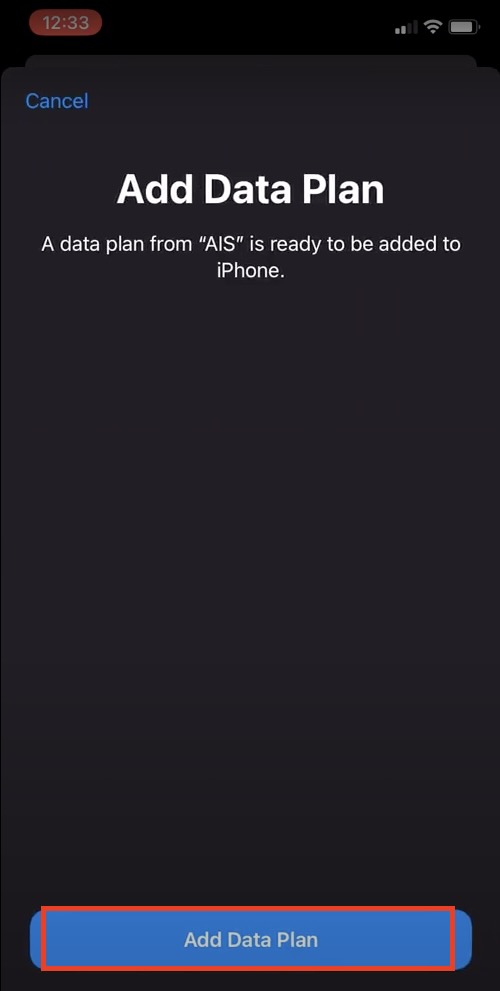
2. 透過二維碼安裝eSIM
The iPhone camera will open. Scan the QR code, which you can print out or open on another device.
iPhone的相機將會打開。掃描二維碼,你可以將二維碼打印出來或者在其他設備上打開它。
3. Label your eSIM
3. 為你的eSIM添加標籤
After your eSIM has been added, you can choose label it to help you manage and identify it, e.g. eSIM-USA
在添加eSIM後,你可以選擇為其添加標簽,以幫助你對其進行管理和識別,例如標簽為“eSIM-美國”
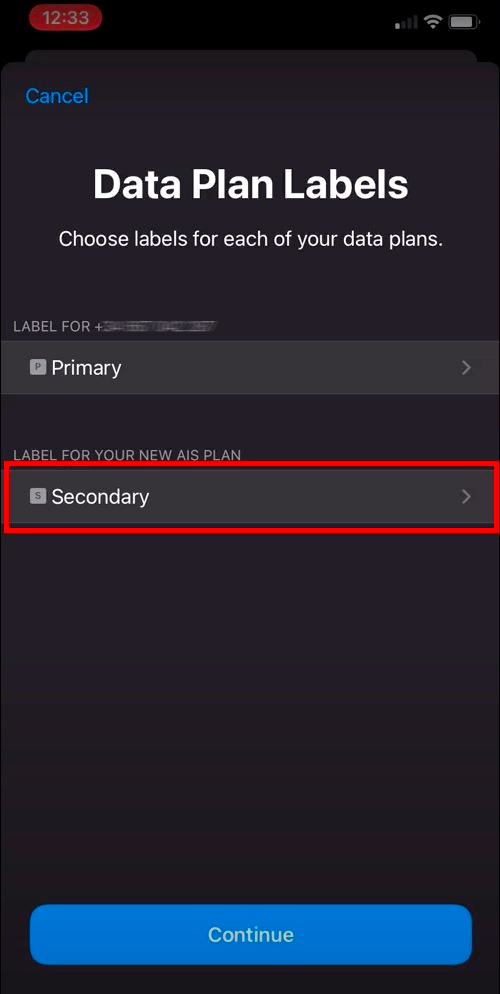
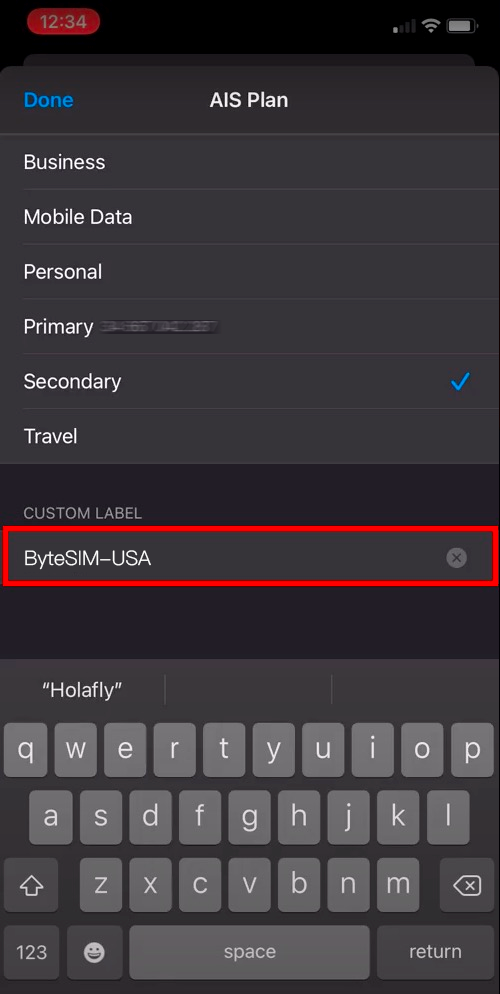
4. Set Your Primary Default Line, Add to iMessage, FaceTime and Apple ID, Set Your Default Line for Mobile Data.
4. 設定你的主要默認線路,將其添加到iMessage、FaceTime和Apple ID中,設定你的移動數據默認線路。
Important: Turn off “Allow Mobile Data Switching” to avoid high roaming bills on your primary data plan.
重要提示:關閉“允許行動數據切換”功能,以避免你的主要數據套餐產生高昂的漫遊費用。
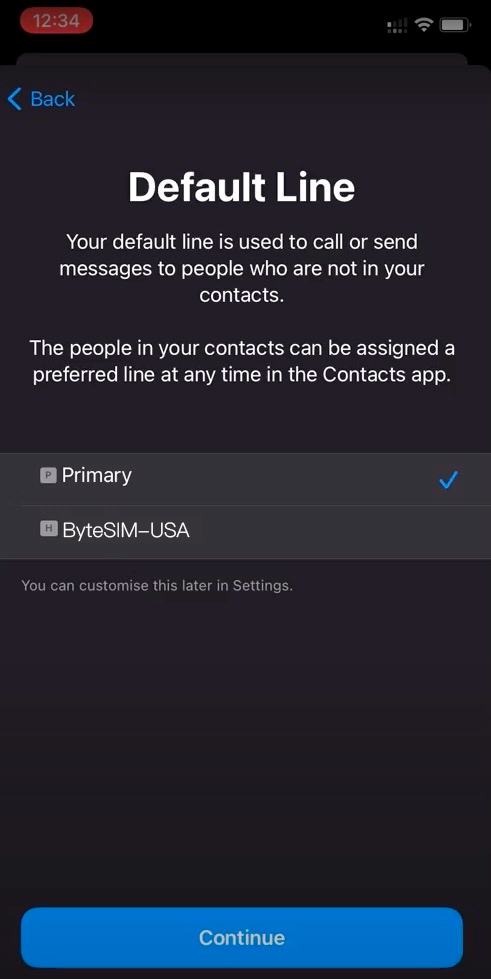
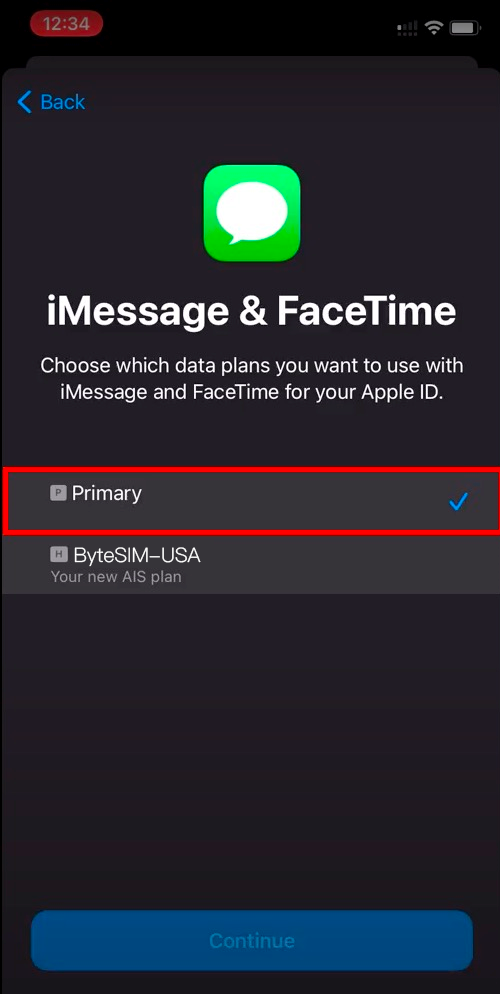
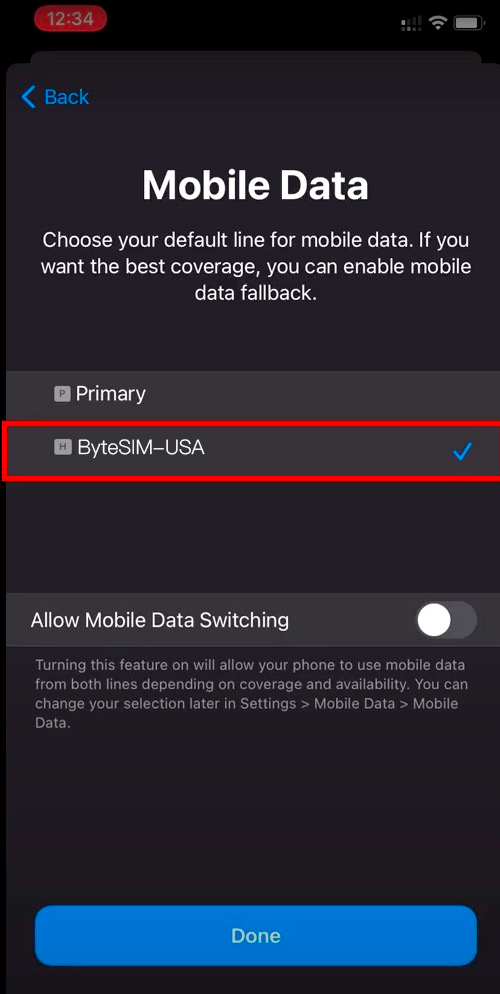
After completing the steps above, installation is done!
完成上述步驟後,安裝就完成了!
How do I activate my eSIM?
我如何激活我的eSIM?
1. Turn on your eSIM
1. 啟用你的eSIM
Go to Settings > Mobile Data > choose eSIM > Turn On This Line
前往「設定」>「行動數據」>「選擇eSIM」>「啟用此線路」
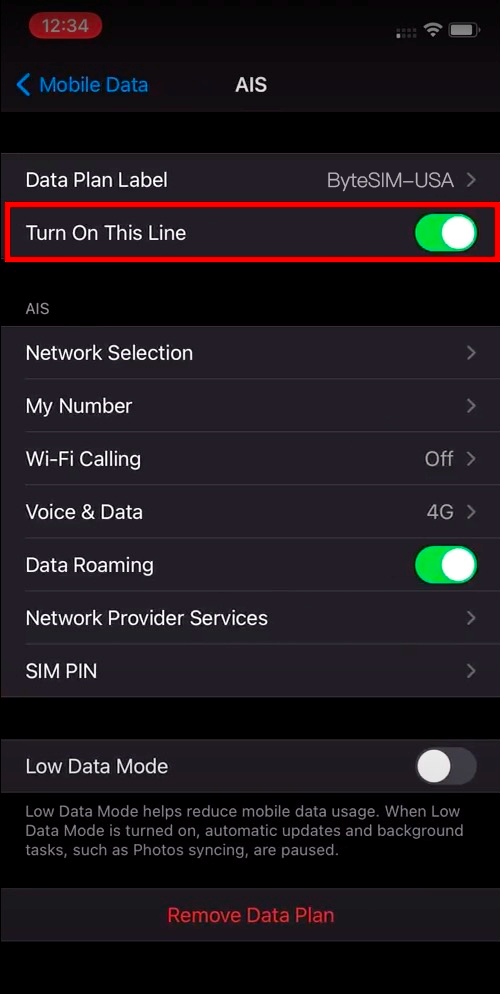
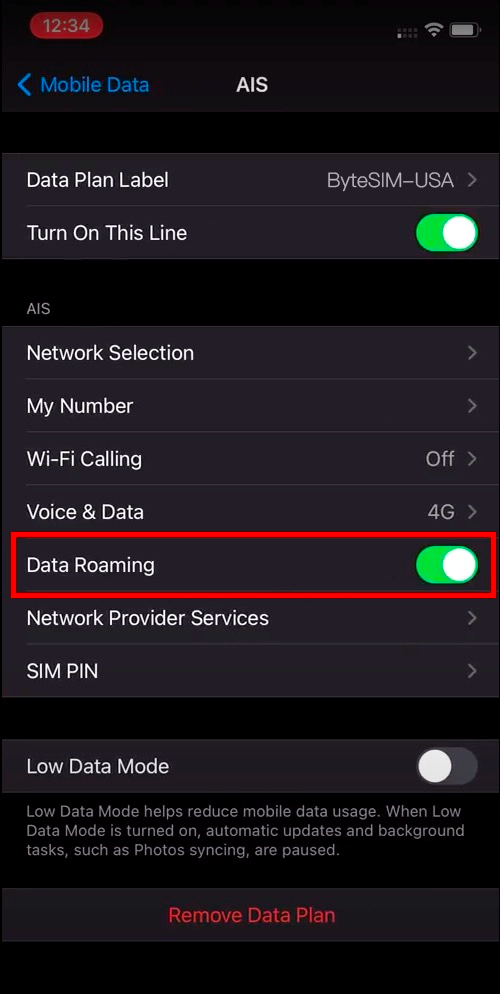
2. Turn on Data roaming
2. 開啟數據漫遊
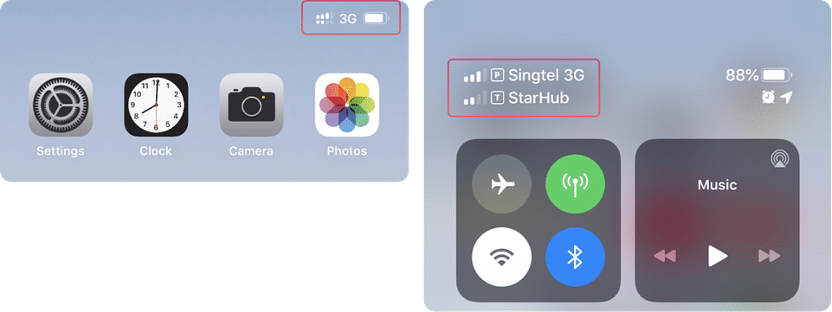
How to tell if your eSIM is active?
如何判斷你的eSIM是否已啟用?
How do I choose a mobile carrier?
我要如何選擇行動網路業者?
Compared with other ISP, We especially provide you with free switching between multiple operators for better signal quality and high-speed data.
與其他網際網路服務供應商相比,我們特別為您提供在多個營運商之間免費切換的服務,以獲得更佳的信號品質和高速數據傳輸。
Of course, if the signal is not good, you can also manually switch the operators we support,
當然,如果信號不好,你也可以手動切換我們支援的營運商,
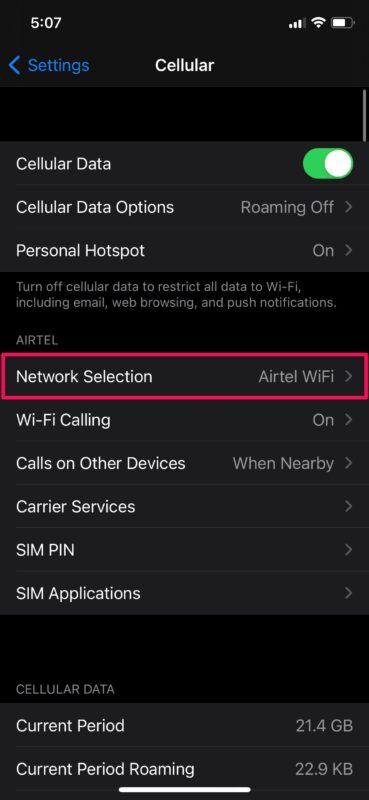
To manually change network carrier on your iPhone, take the following steps:
若要在你的iPhone上手動更改網絡營運商,請依照以下步驟操作:
Go to Settings > Mobile Data > Mobile Network.
前往「設定」>「行動數據」>「行動網絡」
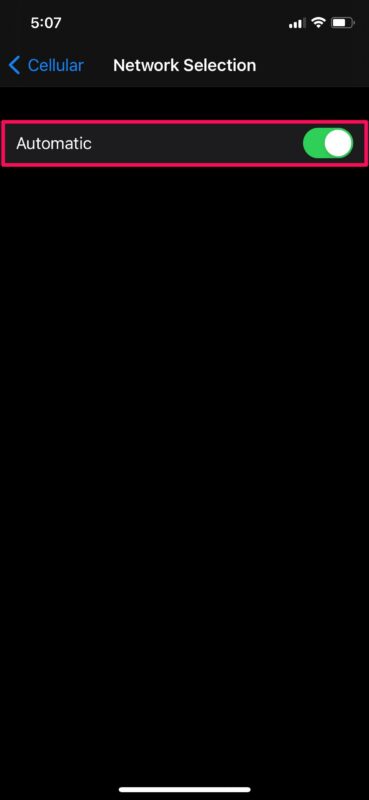
By default, Automatic is selected. Turn off the Automatic option.
預設情況下,「自動」選項是被選中的。請關閉「自動」選項。
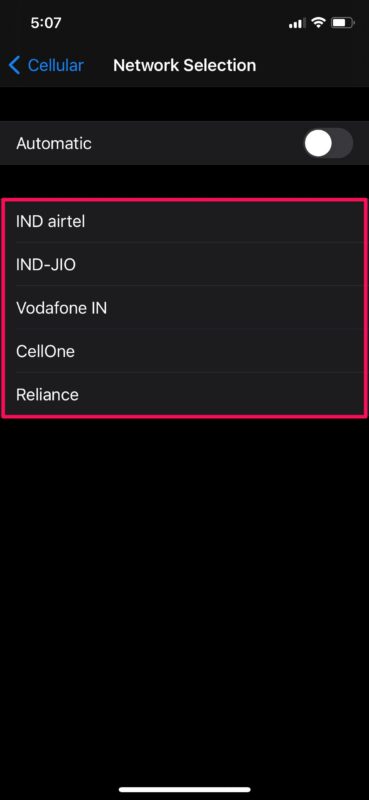
You will see a list of available carriers below the screen. Select one carrier from the list and test the network speed. You can then select the carrier with the highest network speed for your area.
你會在螢幕下方看到可用營運商的列表。從列表中選取一家營運商,然後測試網絡速度。接著,你便可為所在區域選取網絡速度最快的營運商。
Set Network Settings to Automatic when you are back home.
回到家時,將網絡設定設為自動。
Can I have more than 2 esims on iphone?
iPhone可以有超過2個eSIM嗎?
You can install eight or more eSIMs on iPhone, but only two of them can be used at the same time.
你可以在iPhone上安裝八個或更多的eSIM,但同一時間只能使用其中兩個。
Have a wonderful vacation, and feel free to reach out (liang@yourstel.com) if we can help with anything!
祝你有個美好的假期,若有任何我們能幫上忙的地方,請隨時聯繫我們(電子郵件:liang@yourstel.com)!